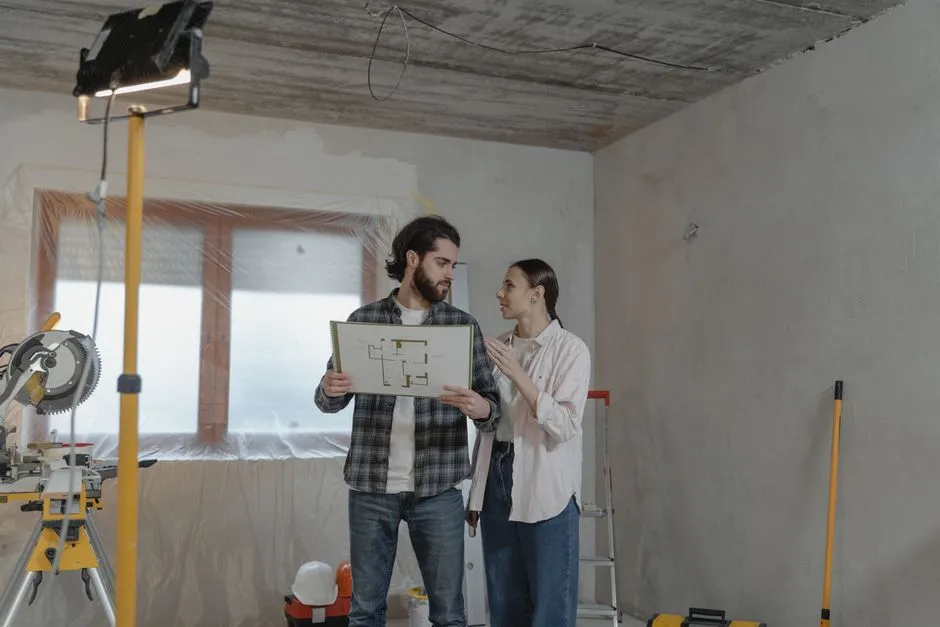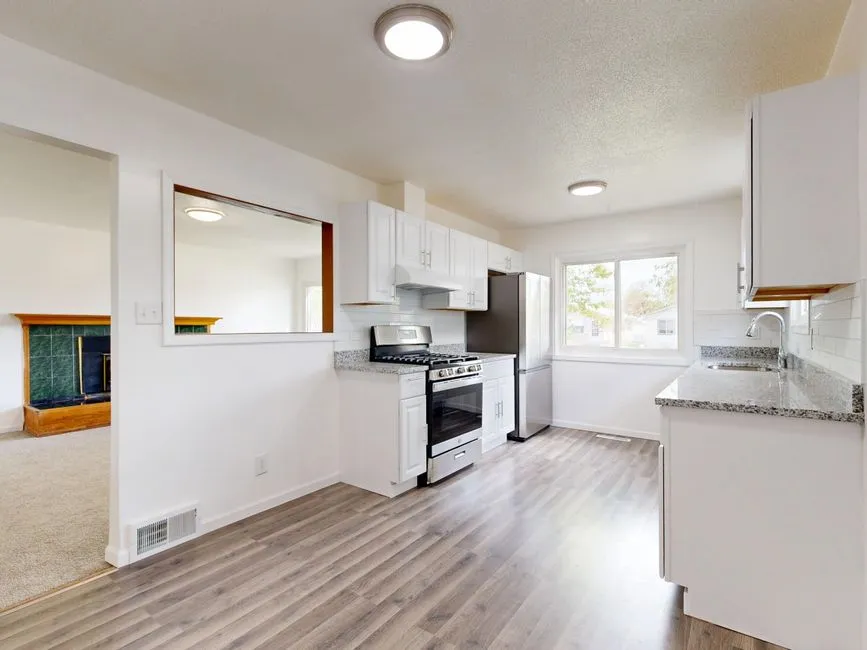

 FIG·01
If you need to move an ArchiMaster 3D model into SketchUp for contractor coordination or custom detail work, export it as a COLLADA .dae file and set the model units to inches before you click Save. That combination is the reliable way to keep texture assignments, material names, and true physical dimensions intact. A raw OBJ export will carry geometry, but it often splits materials into a separate .mtl file and can drop the scale reference that SketchUp needs. The .dae format embeds a unit definition, so SketchUp Pro can convert the file on import instead of guessing. This guide covers the export settings, the import steps, and the two fixes that resolve missing textures and wrong scale.
- Export as .dae, not .obj, when textures and unit scale must survive the trip to SketchUp.
- Set ArchiMaster 3D drawing units to inches before export; SketchUp reads the unit declaration from the .dae header.
- Keep the exported .dae file and its textures folder together, then re-link any missing materials in SketchUp's Materials tray.
- Metric-to-imperial errors scale by 25.4, so matching units before export avoids a model that is either tiny or gigantic.
- Models come in as grouped or component geometry when you use DAE, which keeps walls, cabinets, and fixtures selectable.
Why the Export File Format Matters More Than the Export Button
ArchiMaster 3D exports 3D geometry through its file menu, but the format you choose determines how much information survives. OBJ is a geometry-first format. It stores vertices and faces, but material definitions live in a companion .mtl file, and units are not part of the OBJ specification. When SketchUp imports an OBJ, it often applies the current model's default unit, which can stretch a metric kitchen into something 25.4 times too large or small. COLLADA, written as .dae, is a structured XML format that records the model's unit per meter, material bindings, texture coordinates, and node hierarchy. SketchUp Pro's DAE importer reads that unit element and scales the incoming geometry correctly. For a home-design model, where a 1-inch cabinet gap matters, that difference is the gap between a clean handoff and a frustrating rework session.
“A .dae export is not a copy of your model; it is a unit-aware translation. Match the units, and SketchUp does the rest.”, ArchiMaster 3D Journal
Step-by-Step: Export from ArchiMaster 3D
In ArchiMaster 3D, open the project you want to transfer. Select File > Export > 3D Model from the main menu. In the export dialog, choose COLLADA (.dae) from the format list. Before saving, set the export options to include materials and textures, and choose the same unit system you plan to use in SketchUp. If your SketchUp template is imperial, set the ArchiMaster 3D model units to inches. If your SketchUp template is metric, use millimeters or meters consistently. The exact menu label varies slightly by edition, but the export path is under File > Export.
Set Units Before You Export
Open the project settings or drawing units panel in ArchiMaster 3D and choose inches or millimeters, depending on your SketchUp template. SketchUp Pro's DAE importer reads the unit element from the file, but it does not always override the active SketchUp model units cleanly if they conflict. By matching both applications before export, you remove the 25.4 conversion factor at the source. This step is especially important for kitchen and bath designs, where a 24-inch base cabinet exported from an imperial model will arrive at 24 inches in SketchUp, not 609.6 millimeters or a stray 0.94 inches.
Keep the Texture Folder With the .dae File
DAE files do not always embed every texture image. ArchiMaster 3D writes material images into a folder beside the exported file. Before you move the .dae to another computer or upload it, copy the entire export folder, not just the .dae. SketchUp looks for texture paths relative to the file's folder. If the folder is missing, surfaces display as white or gray, and you will need to re-link each material manually.
Import into SketchUp with Units and Textures Intact
Open SketchUp Pro and choose File > Import. In the file type dropdown, select COLLADA File (.dae). Navigate to the .dae you exported and click Options before importing. Confirm that the import settings preserve materials and component hierarchies. SketchUp Pro then reads the unit declaration and places the model at the origin. If the model enters at the wrong scale, undo the import, open Window > Model Info > Units in SketchUp, set the format to match the ArchiMaster 3D file, and import again. Do not scale the model by hand afterward, because manual scaling can introduce rounding errors on wall thicknesses and cabinet reveals.

Fixing the Two Most Common Problems
Missing or Gray Textures
If surfaces arrive without texture images, open the SketchUp Materials tray, select the material with the broken preview, and click Edit. In the texture section, browse to the textures folder that ArchiMaster 3D created next to the .dae file and re-link the matching image. SketchUp often remembers the relative path once one material is fixed, but if not, repeat for each material. The fastest prevention is to keep the export folder intact from the beginning. ArchiMaster 3D texture names stay stable across exports, so re-linking a material once also fixes future imports from the same project.
Wrong Scale or a 25.4x Error
A model that imports 25.4 times too large or too small was exported in one unit system and imported into another. The fixed conversion is exactly 25.4 millimeters per inch, which is why the error looks so specific. To correct it, note the source unit in ArchiMaster 3D, set SketchUp to the same unit under Window > Model Info > Units, and re-import the .dae. Avoid using SketchUp's Scale tool with a typed factor like 0.03937, because it also scales wall thicknesses and creates non-manifold edges on thin trim profiles. A clean re-import with matched units is faster and safer.
What Transfers Well and What Needs Rebuilding
The DAE route preserves walls, floors, cabinetry, fixtures, material assignments, and major component grouping from ArchiMaster 3D. What it does not preserve is parametric intelligence. A cabinet that was a parametric object in ArchiMaster 3D becomes static geometry in SketchUp. You can still move, resize, and re-texture it, but you cannot edit its door style or pull type through the original parameters. For that reason, many designers use the SketchUp model for site coordination and leave the parametric edits in ArchiMaster 3D's full feature set. If the design changes, re-export the model rather than rebuilding it by hand.
- Walls with thickness, openings, and material faces transfer as grouped geometry.
- Cabinet runs and appliance placements keep their model-space positions and DAE components.
- Texture images and UV mapping survive when the textures folder stays beside the .dae.
- Parametric relationships, lighting, and camera paths do not transfer and must be rebuilt in SketchUp or kept in ArchiMaster 3D.
Frequently Asked Questions
- Can I export ArchiMaster 3D to SketchUp Free?
- No. SketchUp Free, the browser version, does not import .dae or .obj files. You need SketchUp Pro or an older desktop SketchUp Make version. The export from ArchiMaster 3D works the same either way, but the import must happen in a desktop SketchUp product.
- Why are my textures missing after I import the .dae?
- The texture images are usually stored outside the .dae in a folder next to the exported file. If that folder was moved or not copied, SketchUp cannot find the images. Copy the entire export folder and re-link textures in the SketchUp Materials tray.
- How do I fix a model that imports at 25.4 times the wrong size?
- The source units and SketchUp model units do not match. Set both to the same system, inches or millimeters, and re-import the .dae. Do not manually scale the model, because that distorts wall thickness and trim profiles.
- Does OBJ export preserve textures better than DAE?
- No. OBJ separates materials into a .mtl file and has no unit standard, so it is more likely to import with missing textures or wrong scale. DAE is the preferred format for moving textured ArchiMaster 3D models into SketchUp.
- Will my ArchiMaster 3D cabinets stay editable in SketchUp?
- They come in as grouped or component geometry, but they lose parametric door and pull controls. You can edit geometry and materials, but for design changes, re-export from ArchiMaster 3D.
Ready to test the workflow with your own model? Download a free trial of ArchiMaster 3D and export a test kitchen or deck to SketchUp today.
Download free trialReady to design with confidence?
See which edition fits the space you’re designing.