 FIG·01
You can import your own furniture models into ArchiMaster 3D, a comprehensive home design software, by using the File > Import 3D Model command in the Expert or Ultimate Home Design editions. Supported formats include OBJ, 3DS, and DAE, and the process takes under two minutes once your file is prepared. This guide walks you through file preparation, import steps, scaling, and reuse, so you can bring in anything from a vintage armchair 3D scan to a bespoke lighting fixture and see it in photorealistic renderings.
- ArchiMaster 3D Expert and Ultimate Home Design editions import OBJ, 3DS, and DAE files directly; the Landscape & Deck edition supports the same formats for custom outdoor structures.
- Use the File > Import 3D Model dialog to load your model, then adjust the scale multiplier to match your project's real-world units (inches or meters).
- Prepare your model in a free tool like Blender to keep polygon counts under 50,000 and embed texture files in the same folder as the OBJ for seamless appearance.
- Once imported, you can edit materials, save the object to your user library, and reuse it across all future projects without re-importing.
Which Editions Support Custom Model Import?
Custom furniture import is available in ArchiMaster 3D's Expert and Ultimate Home Design editions. These editions are built for full-scale residential design and include advanced tools for lighting, materials, and photorealistic rendering. If you own the Landscape & Deck edition, you can still import custom models such as a unique pergola, outdoor fireplace, or statue. The import engine is identical across the Expert, Ultimate, and Landscape & Deck editions; what changes is the built-in library focus. Check the full product comparison to see which edition fits your workflow. Not every home-design program offers direct import of OBJ files with texture mapping. Tools like SketchUp and Chief Architect handle model exchange differently, but ArchiMaster 3D's one-click import and integrated UV mapping make personalization straightforward without external rendering plugins.

Preparing Your 3D Model for Import
Checklist for a Smooth Import
- Reduce polygon count: Target under 50,000 triangles for a typical furniture model.
- Apply scale: Model to real-world dimensions (e.g., a sofa 90 inches long) before export to match ArchiMaster's project units.
- Pack textures: Keep all texture images (JPG, PNG) in the same folder as the OBJ file, and use relative paths in the MTL file.
- Check normals: Ensure all faces point outward; inverted normals can cause dark patches in the render.
- Remove hidden geometry: Delete internal faces or duplicate objects to keep file size small.
Supported file types are OBJ (the most reliable path), 3DS (good for older model collections), and DAE (Collada). OBJ files generally preserve texture coordinates and smooth shading best. If you download a model from an online marketplace, the ZIP often includes textures; extract everything into one folder before importing.
Step-by-Step Import Process

- 1. Open your ArchiMaster 3D project and switch to the plan or 3D view where you want to place the furniture.
- 2. Go to File > Import 3D Model (or use the Import button on the toolbar). A file browser opens.
- 3. Locate your OBJ, 3DS, or DAE file. Select it and click Open. The Import Model dialog appears.
- 4. In the dialog, set the Scale factor. If your model was built in millimeters but your project uses inches, enter 0.03937 (1 mm = 0.03937 inches). A 2000 mm wide sofa becomes 78.7 inches. Click OK.
- 5. The model appears attached to your cursor. Click to place it, then use the move, rotate, and scale tools as needed. Right-click and select 'Edit Materials' to adjust any textures or colors.
- 6. To reuse the model later, right-click it and choose 'Add to User Catalog' (or 'Save as Symbol'). It now appears in your personal library.
During import, ArchiMaster 3D converts the model into its native format, so it behaves like any other library object. You can drag duplicates from the catalog. The process works offline; all processing happens locally, keeping your design files private. Once imported, you can integrate that custom piece into a full room design. For inspiration, see our step-by-step living room design article or explore how custom items elevate your outdoor spaces in our landscape design software roundup.
Editing and Reusing Imported Models
Once placed, you can treat the imported model almost like a native ArchiMaster 3D object. Right-click to access Edit Materials, where you can replace textures, change tile repetition, or adjust specular highlights and bump maps. If the model is a group of parts, you may select sub-elements and apply different finishes. Photorealistic rendering uses the same physically based lighting engine applied to built-in catalog items, so that custom brass lamp will reflect light just like a library floor lamp. To save a modified model with new materials back to your user catalog, simply re-add it; the catalog stores both geometry and texture assignments.
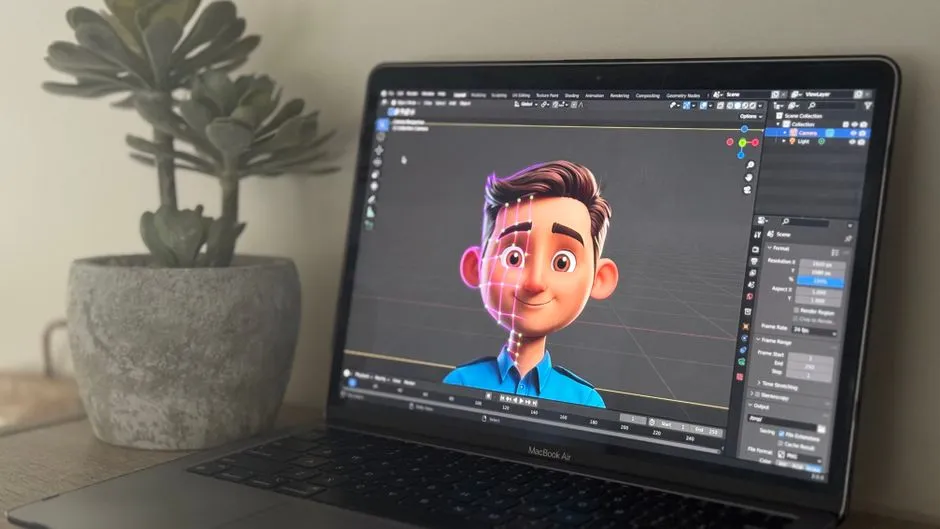
Importing is particularly powerful for visualizing one-of-a-kind pieces before purchasing. A custom model import can turn a generic room into a personalized design, and ArchiMaster 3D's rendering engine shows it in photorealistic quality. Many designers use this workflow with scanned historical furniture or custom-built millwork.
“Importing a custom furniture model is like bringing a floor sample home, only you can change the upholstery with a single click.”, ArchiMaster 3D Design Team
Troubleshooting Common Import Problems
- Missing textures: Ensure all texture images are in the same folder as the OBJ and that the MTL file uses relative paths (e.g., 'wood.jpg' not 'C:/textures/wood.jpg'). Re-import after fixing.
- Model appears tiny or huge: The scale factor needs adjustment. Note the original modeling units and your project units. Use the scale multiplier dialog during import, or scale afterward with the Resize tool.
- Dark faces or inverted normals: Check the model in Blender; recalculate normals outside and re-export. ArchiMaster 3D respects face orientation for lighting.
- Model doesn't show up: The imported object may be hidden in the layer or category visibility settings. Check the View > Layer Manager and ensure 'User Models' is on.
- Slow performance with many custom objects: Reduce polygons further or combine several objects into a single import with Materials. Use the 'Simplify' tool in Blender before export.
If a model still gives trouble, try converting it to OBJ from its original format using a free tool like Blender or an online converter. OBJ is the most robust format in ArchiMaster 3D. The Expert edition's built-in rendering engine handles complex meshes well, but a clean model always yields the best results.
- What file formats does ArchiMaster 3D support for custom models?
- ArchiMaster 3D Expert, Ultimate Home Design, and Landscape & Deck editions can import OBJ, 3DS, and DAE (Collada) files. OBJ with an accompanying MTL material file and textures is recommended for the most reliable texture mapping.
- Can I import models from SketchUp?
- ArchiMaster 3D does not directly open .skp files. You can export your SketchUp model as an OBJ file (using the free ObjExporter plugin for SketchUp) and then import that OBJ into ArchiMaster 3D. Make sure to include the MTL and textures in the export options.
- Why do my imported furniture textures look black or missing?
- This usually happens when the texture image files are not in the same folder as the OBJ file or the MTL file points to absolute paths. Place all textures into the same folder and edit the MTL to use relative paths, then re-import. Another cause can be a missing UV map; rebuild UVs in your modeling tool.
- How do I resize an imported model after it's in the scene?
- Select the model, then use the Resize tool from the toolbar or right-click menu. You can enter a precise scale factor or drag handles. For dimensional accuracy, note the current size in the property panel and calculate the needed factor.
- Can I use imported models in the Landscape & Deck edition?
- Yes. The Landscape & Deck edition supports the same OBJ, 3DS, and DAE import as Expert and Ultimate Home Design. This is handy for bringing in custom landscape structures like a specific trellis or a detailed garden sculpture that isn't in the built-in library.
Ready to see your custom furniture in a full 3D home design? Download the free trial of ArchiMaster 3D Expert or Ultimate Home Design and start importing today.
Download Free TrialReady to design with confidence?
See which edition fits the space you’re designing.