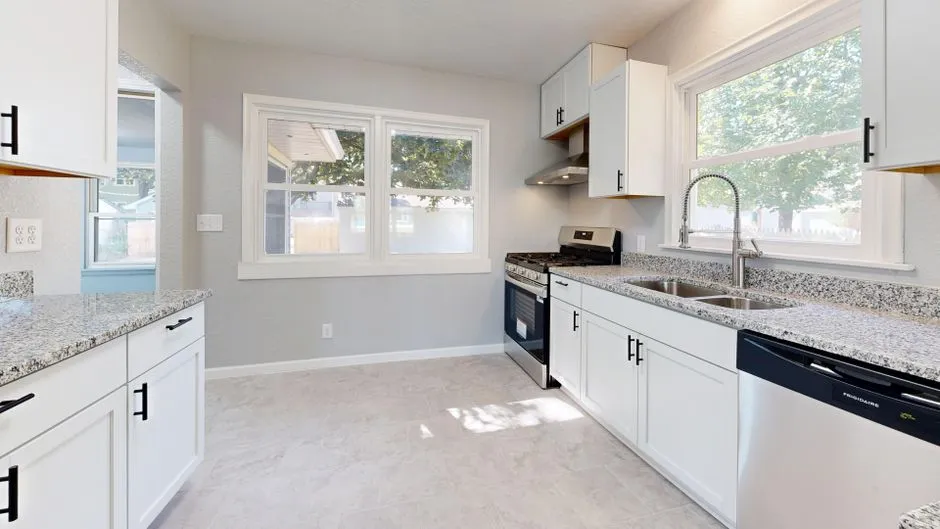

 FIG·01
To import a SketchUp model into ArchiMaster 3D, open File > Import, choose the .skp file, and place the model at the origin. When faces arrive gray or a kitchen island lands 25 times too large, the causes are almost always broken texture links and a unit mismatch, and both are repairable in under ten minutes. This guide walks through the import, relinks missing materials, corrects scale with a known reference dimension, and shows how to prevent the same problems on your next SketchUp export.
- SketchUp .skp files import directly into ArchiMaster 3D; if .skp is not available in your edition, export a Collada .dae from SketchUp Free or SketchUp Pro.
- Gray faces usually mean ArchiMaster 3D cannot find the external JPG or PNG texture referenced by the SketchUp material. Relink the image under Material Editor or export with texture maps.
- Scale errors are almost always a unit mismatch. A 60 inch island exported without unit labels can import as 60 millimeters, shrinking to a 2.36 inch miniature.
- Before exporting from SketchUp, set Model Info > Units to Decimal Inches or Millimeters and write the unit in the file name.
- After import, measure a standard door or base cabinet in ArchiMaster 3D, calculate the scale factor, and apply it to the entire model.
Why SketchUp imports arrive with missing textures and wrong scale
The import itself is straightforward. ArchiMaster 3D reads a SketchUp model as a set of faces, edges, and material references. The problem is that SketchUp materials are not always baked into the geometry. A material can point to an external JPG or PNG texture. If that image file lives on another drive, inside a compressed folder, or only as a SketchUp .skm material definition, the imported model has no pixel data to display. ArchiMaster 3D then shows the face with a neutral gray finish instead of failing. That behavior is useful because the geometry survives even when the finish does not.

Scale errors come from a different place. SketchUp stores units as a document setting, not as a property of every length. A 2,400 mm wall and a 2,400 inch wall both store the same number when labels are stripped. When ArchiMaster 3D interprets those numbers as millimeters while you intended meters, the model imports 1,000 times too small. The inverse happens when inches are read as millimeters: a 60 inch island becomes a 60 millimeter miniature instead of a roughly 5 foot work surface. Both failure modes are silent, so a quick dimension check is the only reliable way to catch them.
How to import the SketchUp file into ArchiMaster 3D
Import the model into a new, empty ArchiMaster 3D project, not directly into an active plan. A separate file makes scaling and cleanup easier before you merge the object into a real room. If you plan to reuse the SketchUp object, import once, repair it, and save it as an ArchiMaster 3D component or project template. That prevents repeating the same texture and scale repairs on every job. All four ArchiMaster 3D editions share the same import engine, so the workflow is identical whether you are on Expert, Ultimate Home Design, Landscape & Deck, or Kitchen & Bath.
- Choose File > Import and set the file type to SketchUp (.skp). If .skp is not shown, export a Collada .dae file from SketchUp first.
- In SketchUp, open Window > Model Info > Statistics and choose Purge Unused to remove hidden component and material references.
- Set Model Info > Units to Decimal Inches or Millimeters, and put the chosen unit in the exported file name, for example kitchen-island-inches.dae.
- Keep the original SketchUp project folder handy. The texture images an imported model may request are likely stored there.
- After placement, select the model and open the Materials panel to confirm that surfaces show the expected finishes, not flat gray.
Choosing the right SketchUp export format
ArchiMaster 3D handles .skp natively, but version drift in older SketchUp releases can produce partial geometry. In those cases a Collada .dae file is the most reliable interchange format because it stores textures, UV maps, and dimensions in one package. OBJ works for geometry but often splits materials into a companion .mtl file plus an image folder, which is exactly the setup that leads to broken links. If a direct .skp import looks wrong, export a .dae copy with default options and test that before doing repair work. When you export a .dae, SketchUp writes the texture images into a subfolder next to the file. Move both the .dae and its folder together.
Fix missing textures and materials after import
A gray face after import does not mean the material was lost. It means ArchiMaster 3D cannot find the image file that the SketchUp material points to. Start by selecting the gray surface and opening its material properties. Note the texture file name. Then browse your original SketchUp project folder for a JPG or PNG with the same name. If you find it, relink it in the material editor and the finish returns immediately. If you cannot find the file, replace the texture with a similar material from the ArchiMaster 3D library, or export the model again from SketchUp with texture maps enabled. The fix is local, not global.
Relinking a gray material in ArchiMaster 3D
- Select the gray face and open the Material Editor.
- Click the texture slot for the Diffuse or Color channel.
- Browse to the original JPEG or PNG in the SketchUp project folder.
- Choose Reload or Open to reconnect the bitmap.
- Repeat for any other faces that show the same gray placeholder.
If the same gray material appears on many surfaces, ArchiMaster 3D usually groups them under one material name. Relink the texture once and the entire material updates across the model. That grouping is a real time saver after importing SketchUp models with repeated finishes, such as counter tops or flooring.
Correct scale using a known dimension
Scale repair starts with a known real-world size. Choose one element whose dimension you know, such as a 30 inch base cabinet, an 80 inch door, or a 600 mm wide refrigerator. In ArchiMaster 3D, use the Dimension tool to measure that imported element. Compare the measurement to the known size. If the imported door reads 80 millimeters but should be 80 inches, the model was imported at 1/25.4 scale. Select the entire model and apply a uniform scale factor of 25.4. If the imported refrigerator reads 600 inches but should be 600 millimeters, apply a scale factor of 0.03937.
The same logic works for any known dimension. Divide the correct length by the imported length to get the scale factor. For example, a 2,400 mm wall that imported as 2.4 mm needs a factor of 1,000. A 9 foot ceiling that imported as 9 inches needs a factor of 12. After scaling, verify a second element. A model that scaled correctly on a door should also show the right wall height and counter depth. If one element fits but another is still off, the original SketchUp model probably contains components with different local scales, and you may need to explode the components in SketchUp and re-export.
Applying a uniform scale factor
In ArchiMaster 3D, select the imported model, activate the Scale tool, and type the factor. The command accepts decimal factors, so 25.4 and 0.03937 both work. Apply the scale only once. If you scale twice by accident, you multiply the error. After scaling, place a known object from the ArchiMaster 3D library, such as a 24 inch base cabinet, next to the imported model to confirm the visual match before rendering.
“The fastest repair is a known measurement. Measure one door, one cabinet, or one window in the imported model, and let that dimension drive the whole correction.”, ArchiMaster 3D Journal
Prevent texture and scale problems before the next export
Most import repairs are avoidable at the SketchUp export step. Before you export, open Window > Model Info > Units and set the unit to Decimal Inches or Millimeters, not Architectural. In the export dialog, enable Options and check Export Texture Maps so SketchUp writes all referenced images into a folder next to the model. Purge unused components and materials, then save the SketchUp file into a clean project folder that contains the textures. When you move the exported file, move the entire folder. These habits remove the two main causes of gray faces and scale surprises.
If you are working in a team, name the export file with the unit and the origin, for example kitchen-island-inches-origin-0.dae. That leaves no doubt about scale for the person doing the import. ArchiMaster 3D reads the geometry and material references but cannot guess the original unit, so the unit label in the file name is often the fastest communication tool.
When to keep the SketchUp model and when to rebuild in ArchiMaster 3D
For custom millwork, site-built furniture, or an unusual curved island, importing a SketchUp model makes sense. For standard rooms, base cabinets, doors, and windows, rebuilding directly in ArchiMaster 3D is often faster than importing and repairing. The ArchiMaster 3D library is dimensioned in real-world units and already carries the correct materials, so a 36 inch base cabinet is exactly 36 inches without any scale work. Use the 3D home design workflow as the base plan, then import only the one or two custom SketchUp pieces you actually need. Once textures and scale are fixed, the imported pieces sit inside the same render pipeline as the rest of the model, including photoreal rendering and material editing. This hybrid approach keeps the SketchUp import as a useful edge case, not a bottleneck.
- Can ArchiMaster 3D open SketchUp files directly?
- Yes. ArchiMaster 3D can import SketchUp .skp files through File > Import. If your SketchUp version produces partial geometry, export a Collada .dae file from SketchUp and import that instead. The .dae format preserves textures, UV maps, and dimensions in one package.
- Why is my SketchUp model gray after importing into ArchiMaster 3D?
- Gray faces mean ArchiMaster 3D cannot find the external texture image that the SketchUp material references. Open the material editor on the gray face, note the texture file name, and relink it to the original JPG or PNG in your SketchUp project folder. If the file is missing, export the model again from SketchUp with Export Texture Maps enabled.
- How do I fix scale when SketchUp imports in millimeters but should be inches?
- Measure one known element in ArchiMaster 3D with the Dimension tool. Divide the correct length by the imported length to get the scale factor. For a door that should be 80 inches but imported as 80 millimeters, apply a uniform scale factor of 25.4. For the reverse, use 0.03937.
- What is the best export format from SketchUp to ArchiMaster 3D?
- If .skp import works in your edition, that is the most direct path. For cross-version or texture problems, Collada .dae is the most reliable because it packages textures, UV data, and dimensions together. OBJ works for geometry but splits materials into separate files, which often creates broken texture links.
- Can I edit an imported SketchUp component inside ArchiMaster 3D?
- Yes. Once the model is scaled and relinked, it behaves like any other ArchiMaster 3D object. You can move, rotate, apply materials, and include it in renders. For reuse, save the repaired model as a component or project template so you do not repeat the texture and scale work.
Test a SketchUp import on your own model. The measurement and relink steps in this guide take less than ten minutes once you see them in the editor.
Download free trialReady to design with confidence?
See which edition fits the space you’re designing.